

A Guide to Currency Formatting Shopify for Global Sales

[ SUMMARIZE WITH AI ]
[ FREE CRO TEARDOWN ]
Find the 3 biggest revenue leaks on your store.
Every day a conversion leak goes unfixed, you're paying for traffic that doesn't buy. Get a 5-minute Loom through your PDP, cart, and checkout, with mockups of the fixes. No pitch.
Get My TeardownGetting currency formatting right on Shopify isn't a small detail, it's a critical component of international sales. When a shopper from Europe sees $5,000 instead of €4.599,00, it creates immediate friction. It makes your store feel foreign, untrustworthy, and unprofessional.
Nailing this means showing prices exactly how a local expects to see them. It's a foundational piece of building the confidence they need to click "buy".
Why One-Size-Fits-All Formatting Kills Conversions
When a potential customer from another country lands on your site, their brain is hardwired to recognize specific pricing patterns. A shopper in Germany expects a comma for the decimal (€19,99), while someone in Switzerland is used to seeing an apostrophe for the thousands separator (CHF 1'000.00).
Show them something different, and you trigger immediate cognitive dissonance. It feels wrong. This is a subtle but powerful signal that your brand doesn't understand their market, which makes them question everything from shipping policies to customer support. Addressing this is a critical piece of any Shopify conversion rate optimization strategy.
The Real Money Behind Localization
Localization is no longer a "nice-to-have" option, it's essential for any brand with global ambitions. According to Shopify's own data, properly localized stores, with the right language and currency, see a 13% relative lift in conversion rates.
Let's put that into perspective. For a Shopify Plus brand doing $20M annually with 30% of sales from abroad, even a conservative 5-10% lift from proper localization translates to an extra $300,000 to $600,000 in revenue each year.
For global ecommerce, currency formatting is the digital equivalent of a firm handshake. Getting it wrong is like offering your left hand, it’s an immediate, awkward signal that you don’t understand local customs, and it undermines the trust you need to close a deal.
Shopify provides a powerful set of tools to get this right. The key is knowing how to use them. Here are the core components you’ll need to master:
- Liquid Money Filters: These are your server-side tools. They live in your theme's code and format prices based on your store's currency settings.
- Shopify Markets: This is the platform-level solution for global expansion. It handles the heavy lifting of currency conversion, price rounding, and local payment methods to create a truly seamless buying experience.
- Custom JavaScript: For dynamic price changes on the page, like with a variant selector, you'll need client-side JS to keep currency formatting consistent without a full page reload.
Mastering Shopify’s Native Currency Tools
Your Shopify theme is the starting point for currency formatting. It uses a server-side language called Liquid to render prices. At its core, a few key tools work together to ensure prices display correctly across your storefront. Mastering their interaction is the first step.
The process begins in your store’s base settings. In your Shopify admin under Settings > Store details, you’ll find your store's primary currency. This single setting is the master rule for your theme, dictating how all of Liquid's money filters behave by default.
The Power of Liquid Money Filters
Liquid money filters are simple code snippets that take a raw price value, which Shopify always stores in cents, and turn it into a human-readable format. For instance, a price stored as 1999 (cents) can become $19.99 or €19,99, depending on your settings.
You’ll see three main filters in your theme files:
-
money: The workhorse. It displays the price with the currency symbol, formatted according to your store's rules (e.g.,$19.99). -
money_with_currency: Excellent for clarity, especially for international stores. It adds the three-letter currency code (e.g.,$19.99 USD). -
money_without_trailing_zeros: If a product is an even dollar amount like$20.00, this filter removes the unnecessary decimals (e.g.,$20).
In a theme file, you might see this on a product page:
<span>{{ product.price | money }}</span>
That one line of code grabs the raw integer from the product.price object and pipes it through the money filter to format it correctly for the customer.
This decision tree illustrates how critical correct formatting is for every international visitor.
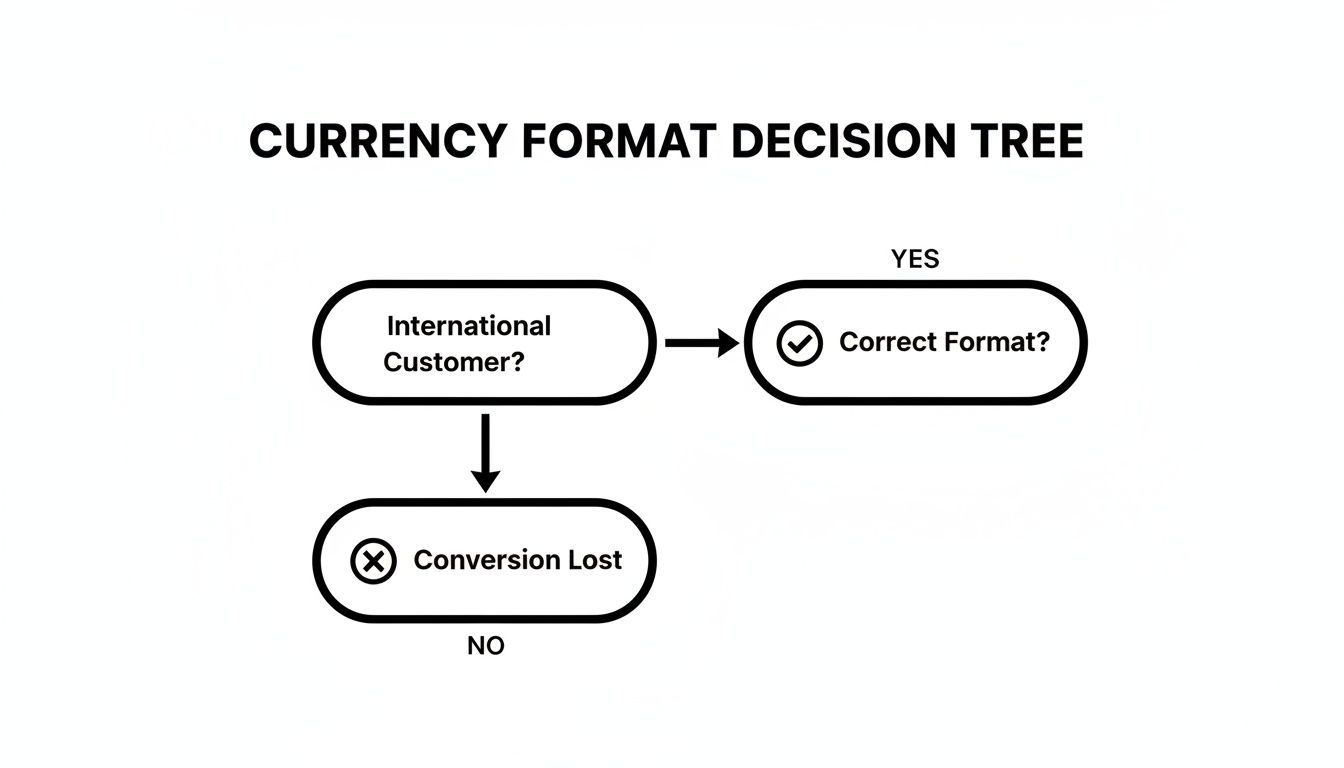
As you can see, the path to conversion hinges on presenting a familiar and trustworthy price from the first glance. A wrong move here, and the sale is likely lost.
Here’s a quick-reference table comparing how these filters behave with different currency settings.
Shopify Money Filters at a Glance
| Liquid Filter | Example Input | USD Output ($) | EUR Output (€ with comma) | JPY Output (¥) |
|---|---|---|---|---|
money |
{{ 1999 | money }} |
$19.99 |
€19,99 |
¥1999 |
money_with_currency |
{{ 1999 | money_with_currency }} |
$19.99 USD |
€19,99 EUR |
¥1999 JPY |
money_without_trailing_zeros |
{{ 2000 | money_without_trailing_zeros }} |
$20 |
€20 |
¥2000 |
This table shows how much the output changes based on the filter and the store's currency settings. It's a handy cheat sheet when digging into theme code.
Where Native Tools Fall Short
While Liquid filters are solid for static page loads, their major weakness is that they are rendered on the server before the page reaches the user's browser. This means they can't react to customer actions on the page without a full reload.
This becomes a major issue in dynamic parts of your store, like a mini-cart that updates with JavaScript or a product page where the price changes instantly when a new variant is selected. Liquid is useless here because the server isn't involved. Relying only on these native tools results in a clunky experience where prices might flash in the wrong currency or fail to update.
Proper currency formatting is a significant focus within the Shopify ecosystem. A recent analysis found that 76 themes now specifically support right-to-left markets, a clear nod to global commerce. With roughly 66% of Shopify orders coming from mobile devices, clear and correct pricing is non-negotiable for a good user experience.
The real test of your currency formatting isn’t just on the product page. It’s in the dynamic moments, the quick-add, the mini-cart, where a flicker of an incorrect currency symbol can shatter a seamless experience and lose a sale.
To handle these dynamic updates, you must turn to client-side solutions. This means using JavaScript to format prices directly in the user's browser, ensuring the experience stays consistent no matter how they interact with your site.
Scaling Globally with Shopify Markets
While Liquid filters display prices in different currencies, Shopify Markets is where you graduate to true international commerce. This is the toolkit for merchants serious about global growth. It's not just about displaying prices, it's about building a fully localized, trustworthy buying experience from start to finish.
Markets is the engine that handles everything from real-time currency conversion and intelligent price rounding to offering local payment methods your customers actually use.
From Cosmetic Changes to Transactional Trust
This shift is monumental. It’s one thing to show a price in Euros, but it’s another to let a customer check out in Euros using their preferred payment gateway. That’s the seamless experience that builds the trust required to convert international visitors into loyal customers.
Shopify Markets lets you create distinct rules for every country or region you operate in. The conversation moves from "how do we show the right symbol?" to "what's our pricing strategy for this market?"
Imagine you’re a US brand expanding into the EU and the UK. With Markets, you can treat them as two separate regions, each with a tailored setup.
- For your EU Market: Set the currency to EUR and enable popular payment options like Klarna or Sofort.
- For your UK Market: Switch the currency to GBP and offer choices like Clearpay.
This level of detail makes shoppers feel like they're on a local website, not a foreign store that happens to ship to them. When you're expanding, solid payment integration in fintech is the backbone of smooth, reliable transactions.
The single biggest upgrade Shopify Markets offers is the ability to check out in local currency. It eliminates that jarring, last-minute surprise of seeing the cart total revert to USD, a moment of friction that kills countless international sales.
Maintaining currency consistency from the product page to the final "thank you" page is absolutely essential for a high-converting global strategy.
The Strategic Power of Price Rounding
One of the most powerful features in Markets is custom price rounding. This is how you avoid awkward, clunky prices like €47.38 that scream "automated conversion." Nothing erodes trust faster than a price that looks machine-generated.
Instead, you can set up rounding rules that preserve your psychological pricing strategy in every market.
- Ensure all prices in your EU market end in .99 (e.g., €49.99).
- Round prices in Japan to the nearest whole number (e.g., ¥7,999).
- Keep all Canadian prices ending in .00 or .50 for a clean look.
Don't underestimate the financial impact here. Getting currency formatting wrong is costly. Shopify community reports show bugs where a product priced at ¥52,000 in Japan accidentally renders as $52,000 for US visitors because an app mishandled the currency context. That’s a perceived price jump of nearly 700%.
Conversely, when brands use Markets correctly, case studies often show conversion rates jumping by 10% or more. For a Shopify Plus store spending $50K+ per month on ads, a 10% conversion lift from better currency display can reclaim thousands in wasted ad spend.
Properly setting up Shopify Markets isn't a minor UI tweak. It's a core part of building a profitable international business, making your pricing feel intentional and trustworthy to every customer, wherever they are.
Client-Side Formatting for Dynamic Experiences
Liquid filters are great for static pages, but they hit a wall once your storefront gets interactive. Features that update a price without a full page reload, a dynamic product bundle, a variant selector, or a quick-add button, can't rely on Liquid. This is where client-side formatting is essential for a smooth, localized experience.
When a customer interacts with your site, you need JavaScript to grab a new price and display it correctly, right then and there. A mistake here is jarring. Imagine a user in Germany selects a new product variant, and the price flashes from €49,99 to $59.00. That instantly breaks trust and can lead to an abandoned cart.
To handle these dynamic updates, you have two primary tools. The first is a classic Shopify helper, and the second is a more modern, robust browser standard.
Using Shopify's Built-In Helper: Shopify.formatMoney
Most Shopify themes include a global JavaScript object with a handy function: Shopify.formatMoney. This function takes a raw price value (in cents) and formats it using the currency rules set up in your Shopify admin.
This makes it a straightforward way to maintain consistency. The function taps directly into your store's configuration, so if your settings dictate that Euros use a comma decimal separator, Shopify.formatMoney will automatically follow that rule.
Here’s how you might use it to update a price when a customer picks a new variant:
// Assume 'variantPrice' is an integer in cents, like 2995.
// This value comes from your product's variant data.
const newPriceInCents = 2995;

// The 'money_format' string is passed from Liquid to JavaScript.
// For a USD store, this might be "${{amount}}".
// For a German store, it might be "{{amount_with_comma_separator}} €".
const moneyFormat = theme.moneyFormat || "${{amount}}";

const formattedPrice = Shopify.formatMoney(newPriceInCents, moneyFormat);

// Now, update the price element on the page.
document.querySelector('.product-price').textContent = formattedPrice;

// Output for a USD store: $29.95
// Output for a German store: 29,95 €
The main catch is that your theme must correctly pass the money_format string from Liquid into your JavaScript. While reliable, this method ties your front-end code directly to Shopify's theme architecture, which can be limiting for complex or headless builds.
A More Modern Approach: Intl.NumberFormat
For a more powerful and standardized solution, I recommend the native browser API: Intl.NumberFormat. This JavaScript object provides sophisticated, locale-aware number formatting without depending on Shopify's theme objects. It's supported by all modern browsers and offers incredible control over how currencies are displayed.
This method gives you the freedom to format numbers for any locale, not just the one active in your Shopify settings. It's especially useful for highly personalized experiences or for storefronts handling complex currency logic entirely on the client side.
The syntax is clean. You create a formatter for a specific locale and define how you want the currency to look.
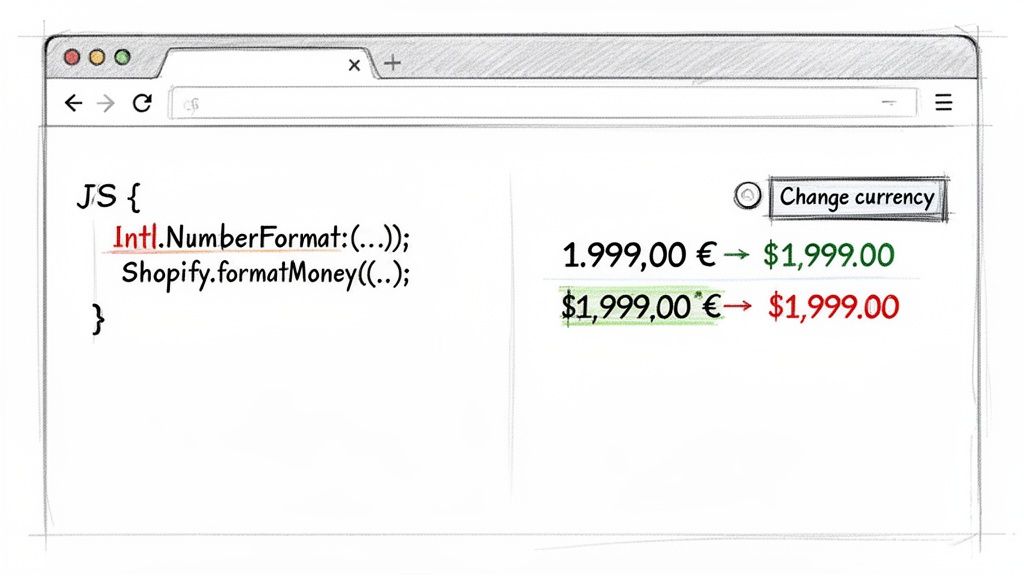
As the example shows, you create a formatter by specifying a locale (like 'de-DE' for Germany) and an options object that defines the style and currency. This approach separates the formatting rules from the number itself, making your code cleaner and more reusable.
Here’s how you could achieve the same result with more explicit control:
// The raw price value (in dollars/euros, not cents)
const price = 29.95;

// Create a formatter for a German customer in Germany
const germanFormatter = new Intl.NumberFormat('de-DE', {
  style: 'currency',
  currency: 'EUR',
});

// Create a formatter for a US customer
const usFormatter = new Intl.NumberFormat('en-US', {
  style: 'currency',
  currency: 'USD',
});

// Update the price element on the page for a German user
document.querySelector('.product-price').textContent = germanFormatter.format(price);
// Output: 29,95 €

// Or for a US user
document.querySelector('.product-price').textContent = usFormatter.format(price);
// Output: $29.95
Intl.NumberFormatis the practitioner's choice for modern Shopify development. It decouples your currency formatting from the theme's Liquid environment, giving you the control needed to build fast, reliable, and highly dynamic user experiences that convert.
By using this API, you ensure your dynamic pricing components are not only accurate but also respect international conventions, a critical detail for earning the trust of a global customer base. For any brand running dynamic bundles, personalized offers, or AJAX-driven price updates, mastering client-side formatting is non-negotiable.
Tying Currency Into Your Personalization Strategy
Correct currency formatting isn't just a technical task, it's a critical part of a smart personalization strategy. This is where you bridge the gap between top-of-funnel ads and the on-site experience. A seamless journey here builds immediate trust and makes your ad spend work harder.
Think of it as the ultimate first impression. When a customer clicks an ad promising one thing but lands on a site showing something else, trust is broken instantly, especially when it comes to price.
Ads-to-Site Continuity: Don't Break the Promise
Consider a common scenario. You’re running a Meta ad campaign targeting shoppers in Canada. Your ad creative is perfect, showing your flagship product for a compelling $129 CAD. A customer clicks through.
They hit your product page, ready to buy, but instead of $129 CAD, they're staring at $99 USD. Even with a currency selector tucked away, the initial promise is gone. That friction creates doubt and forces them to do mental math, killing the momentum your ad built. You've likely lost the sale and wasted your ad spend.
To nail this, ensure the first-page experience perfectly mirrors the ad's promise. On Shopify, there are a couple of solid ways to handle this.
-
Use URL Parameters: This is the most direct and reliable method. Structure the link in your ad to include a currency parameter, like
yourstore.com/products/hero-product?currency=CAD. This tells Shopify Markets to load the page in Canadian Dollars from the start. No guesswork involved. - Rely on Geolocation: Shopify Markets can also automatically detect a user's location via their IP address and switch the currency. This works well, but it can be less precise, especially with VPNs. For paid traffic where every click costs money, explicitly setting the currency in the URL is always the safer bet.
Segment-Specific Formatting for High-Value Customers
Beyond switching from CAD to USD, an effective personalization strategy tailors the entire price presentation to different customer segments. This shows your most valuable audiences that you genuinely understand them.
Imagine selling the same high-ticket item to two very different groups.
-
German B2C Shoppers: In Germany, prices are legally required to include Value Added Tax (VAT). Your formatting must reflect that by showing a clear, VAT-inclusive price in the local style, like
1.999,00 €. -
American B2B Clients: A wholesale buyer in the US expects the opposite. They need to see the pre-tax price, formatted in the standard American way, such as
$1,999.00.
Showing the wrong format to either group causes confusion and signals that your store might not be set up to do business with them. This is a perfect example of how currency formatting shopify rules can be tweaked for specific audiences, a key tactic in more advanced website personalization strategies.
Currency formatting isn't a passive setting you configure and forget. It's an active personalization tool that tells each visitor, "We built this experience for you." Getting this right is a powerful trust signal that directly lifts conversions.
By linking your currency rules to your customer segments and ad campaigns, you're engineering personalized buying journeys that feel intuitive and trustworthy. This attention to detail is what separates brands that just sell internationally from those that truly scale globally.
How to Test and Troubleshoot Common Issues
Pushing new currency features live without a rock-solid QA plan is a recipe for disaster. A single broken price display can tank conversions, flood customer support, and damage shopper trust. Display bugs show up fast when you track each market against ecommerce conversion rate benchmarks. Before any formatting changes go live, you need a clear, repeatable testing process.

This requires more than a quick glance. You have to simulate the customer journey from different regions. A VPN (I use Urban VPN) is your best tool for this. Use it to browse your store from target countries like the UK, Germany, or Australia. This simple step often reveals glaring issues you’d otherwise miss.
Your Core QA Checklist
Every time you launch a new market, your team must run through this checklist. It’s non-negotiable for protecting revenue and delivering a professional experience.
-
Product & Collection Pages: Check the main displays first. Are prices showing in the correct local currency with the right formatting? (e.g.,
£19.99for the UK,€19,99for Germany). - Dynamic Price Changes: Click on everything. Test all variant selectors, swatches, and quick-add buttons. Does the price update instantly and accurately in the local currency?
- Cart & Mini Cart: Add items to the cart. Do the line items, subtotal, and grand total all reflect the correct currency? A common bug is for these to revert to your store's default currency.
- Checkout Flow: This is the most critical step. Go through the entire checkout process, up to the final payment step. The final amount must be presented in the local currency, with no exceptions.
Adopting a structured process moves you from simple visual checks to rigorous analysis. For more on testing methodologies, see our guide comparing A/B testing vs Multivariate testing.
Common Pitfalls and How to Fix Them
Even with careful setup, issues can arise. Here are common problems and how to troubleshoot them.
-
Problem: Prices inside third-party apps (like product reviews or upsell widgets) are stuck on your store's default currency.
- Solution: The app likely isn't built for Shopify Markets. Check the app’s documentation for compatibility. You might need a modern alternative or to contact their support for an update.
-
Problem: AJAX components, especially the mini-cart, flash the wrong currency for a split second.
-
Solution: Your client-side JavaScript is the culprit. It's likely missing the formatting logic. Use browser dev tools to inspect the
Shopify.currencyobject and ensure it’s updating as expected. ApplyIntl.NumberFormatto any prices you're fetching and injecting dynamically.
-
Solution: Your client-side JavaScript is the culprit. It's likely missing the formatting logic. Use browser dev tools to inspect the
-
Problem: The wrong currency symbol is hardcoded somewhere in the theme.
-
Solution: Search your theme's
.liquidfiles for hardcoded symbols like$or€. Replace every instance with Liquid’s dynamiccart.currency.symbolobject. This ensures the symbol always matches the customer's selected market.
-
Solution: Search your theme's
Spending a few minutes on rigorous QA before launching a new market is one of the highest-impact actions your team can take. It directly prevents the jarring pricing errors that kill conversion rates and erode customer credibility.
To take troubleshooting a step further, it helps to know how to gain actionable insights from your Shopify sales data. By monitoring metrics like average order value by country, you can often spot anomalies that point to a persistent formatting bug you might have missed.
Frequently Asked Questions
When scaling a Shopify store internationally, tricky questions about currency formatting are inevitable. Here are answers to the most common ones from high-growth brands.
Can I Set Different Prices for Products in Different Currencies?
Yes, and you should. This is a core strength of Shopify Markets. It lets you go beyond simple currency conversion. You can set specific price adjustments for entire countries or regions, either as a percentage or by setting fixed, manual prices for key products.
This control is a game-changer for your international pricing strategy. For example, you could price a product at $100 USD in the United States but lock it in at €95 EUR for your European market. This protects your margins from exchange rate fluctuations and keeps your pricing consistent and professional.
How Do I Handle Currencies Without Decimals?
Shopify’s system is already set up to handle zero-decimal currencies like the Japanese Yen (JPY) automatically, as long as you let it. Remember that Shopify’s backend stores all prices in cents.
Whether you're using Liquid's money filters or JavaScript functions like Shopify.formatMoney, the system knows that 5000 cents should be displayed as ¥5,000. Your only job is to enter the correct price in the admin. Do not overcomplicate it.
A common mistake is manually stripping decimals for certain currencies within the theme code. This almost always leads to bugs. Store prices in cents and trust Shopify's native formatting to do its job.
My Old Currency Selector App Is Not Working with Markets. What's Going On?
This is a classic growing pain for stores adopting Shopify's modern international setup. Most older currency apps are not built to work with Shopify Markets, which has its own native logic for switching currencies. The old app is likely trying to override it, causing a conflict.
The fix is usually straightforward: disable and uninstall the old app. First, check if your theme has a built-in country and currency selector, as many modern themes do. If so, enable it. If not, find a new app on the App Store built specifically to integrate with the Markets API. Sticking with native Markets functionality is always the most stable path forward.
The next step is to audit your own store. Use a VPN to view your site from your top three international markets. Check the product pages, cart, and checkout flow. If you see any currency inconsistencies, you have a clear action item to improve your global conversion rate.
At CONVERTIBLES, we help Shopify Plus brands move past generic CRO to build segment-specific experiences that scale profit per visitor. If you're ready to connect your ad spend to a truly personalized on-site journey, let's talk.